Tips on checking Channel Mapping connections within RMS.
Overview
The RMS Channel Manager integrates seamlessly with a variety of Online Travel Agents (OTAs), Booking Engines, Distributors, and Global Distribution Systems (GDS).
Mapping a Category and Rate combination determines the prices and inventory availability provided to the connected channel.
The channel mapping screens continually undergo updates for improved efficiency.
Please Note! RMS is highly configurable. Some Terminology, User Access & Permissions, Images, Labels, and Functions used in these articles may differ from your setup. CLICK HERE to find out more.
Mapping Channel Process Update
Previous Behaviour:
When the mapping channel was opened, RMS automatically contacted the OTA to retrieve the latest room and rate combinations. This often resulted in delays and errors, particularly for properties with many mappings.
New behaviour:
- RMS will no longer automatically call the OTA when the mapping channel is opened.
- Instead, it will display the most recently saved mapping data.
To check or update mappings:
- Click Refresh to prompt RMS to retrieve the current room and rate combinations from the OTA.
- A notification will appear if a refresh is required.
Important!
• All mappings must be completed before saving changes.
• If mapping is incomplete, RMS will remove the incomplete mapping unless No Update is selected.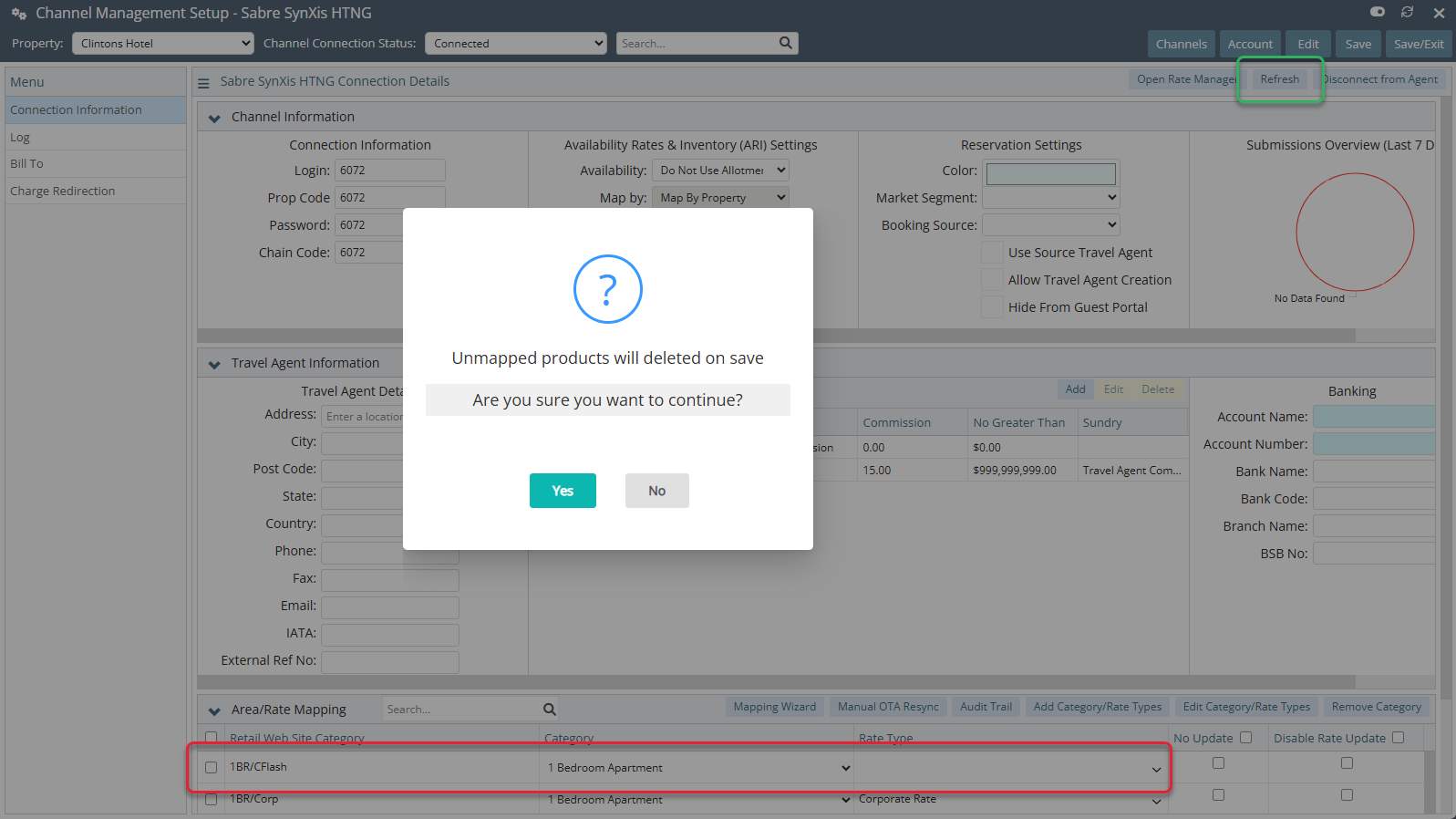
Expired Rates
When a rate has expired, been made "Inactive", or is out of date, the Mapping screen will display the Rate Name with the label "Invalid" (2) in front of it. This helps you quickly identify rates that need attention.
You can take one of the following actions:
- Extend the rate so it is no longer expired.
- Mark the expired rate as Inactive if it’s no longer needed.
Searching for the word "Invalid" in the Room/Rate Mapping section (3) will help you to easily find all expired rates.
Comments
0 comments
Please sign in to leave a comment.